I’ve been playing around with Godot a bit recently, a promising 2D/3D game engine that is completely open source. What most impressed me is that the entire engine is distributed as a 50MB binary. Compared to the 1GB+ installation size for Unity, this is pretty amazing.
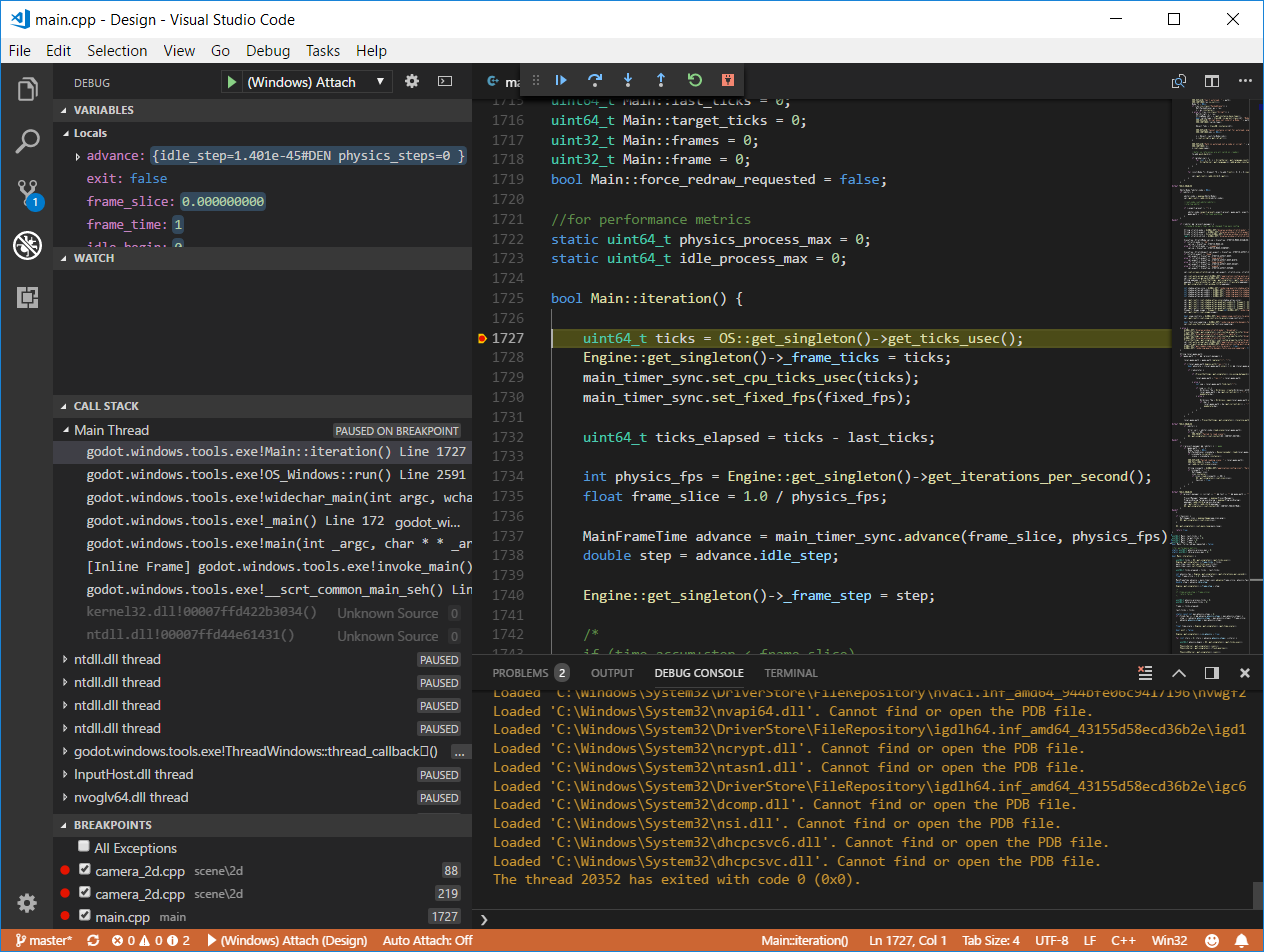
Here are some quick instructions for debugging the Godot engine itself (i.e. rather than a game created in Godot) using VS Code:
-
Make sure you have all the build requirements. Refer to the build documentation available here.
-
I ran into an issue with the
sconscommand which would throw this error:Fatal Python error: Py_Initialize: unable to load the file system codec ModuleNotFoundError: No module named 'encodings'
To fix, open
scons.bat(mine was inC:\Python36\Scripts) and remove/comment the following line:set path=%dp0;%dp0..;%path%
-
-
Clone/download the Godot engine source code from GitHub here.
-
Open a terminal at the root directory of the source code and build using the following command:
scons platform=windows target=debug -
In VS Code, open the source code root directory as the project folder.
-
Go to
Debug → Open Configurationsand enter the following:{ "version": "0.2.0", "configurations": [ { "name": "(Windows) Attach", "type": "cppvsdbg", "request": "attach", "processId": "${command:pickProcess}" } ] } -
Set a breakpoint somewhere in the code that you know will be hit. For example,
Main::iteration()inmain/main.cpp. -
Run
bin/godot.windows.tools.exe. -
Go to
Debug → Start Debuggingthen type ingodotto find the running process and press ENTER. -
The debugger should now be attached to
godot.windows.tools.exeand the breakpoint should be hit.